
Configure the ActiveCampaign integration
Connecting your ActiveCampaign account to echo
Overview
This guide describes the configuration of the ActiveCampaign integration in echo. It is relevant as soon as ActiveCampaign has been selected as an integration during onboarding (step 2 of the installation guide). The settings are available at any time under Settings → ActiveCampaign.
The connection is organization-wide and is set up once by an administrator. Users do not need to connect their own ActiveCampaign account.
Once connected, echo searches your ActiveCampaign account for contacts and companies (accounts) – both for the contact search and for identifying incoming callers.
Where to find the connection details
You will find the required values in ActiveCampaign under Settings → Developer. The page shows both the URL and the API key of your account.
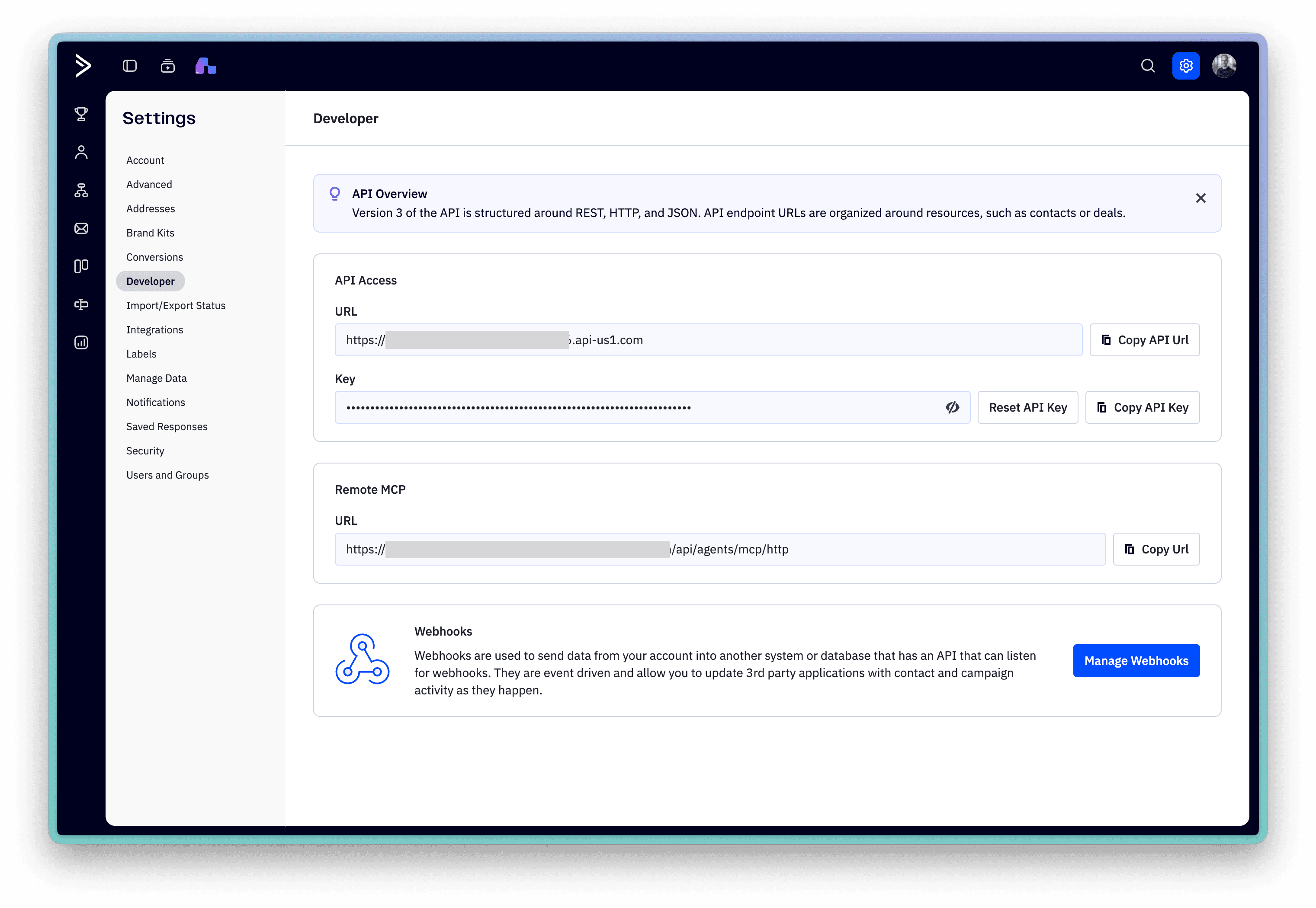
Connection details
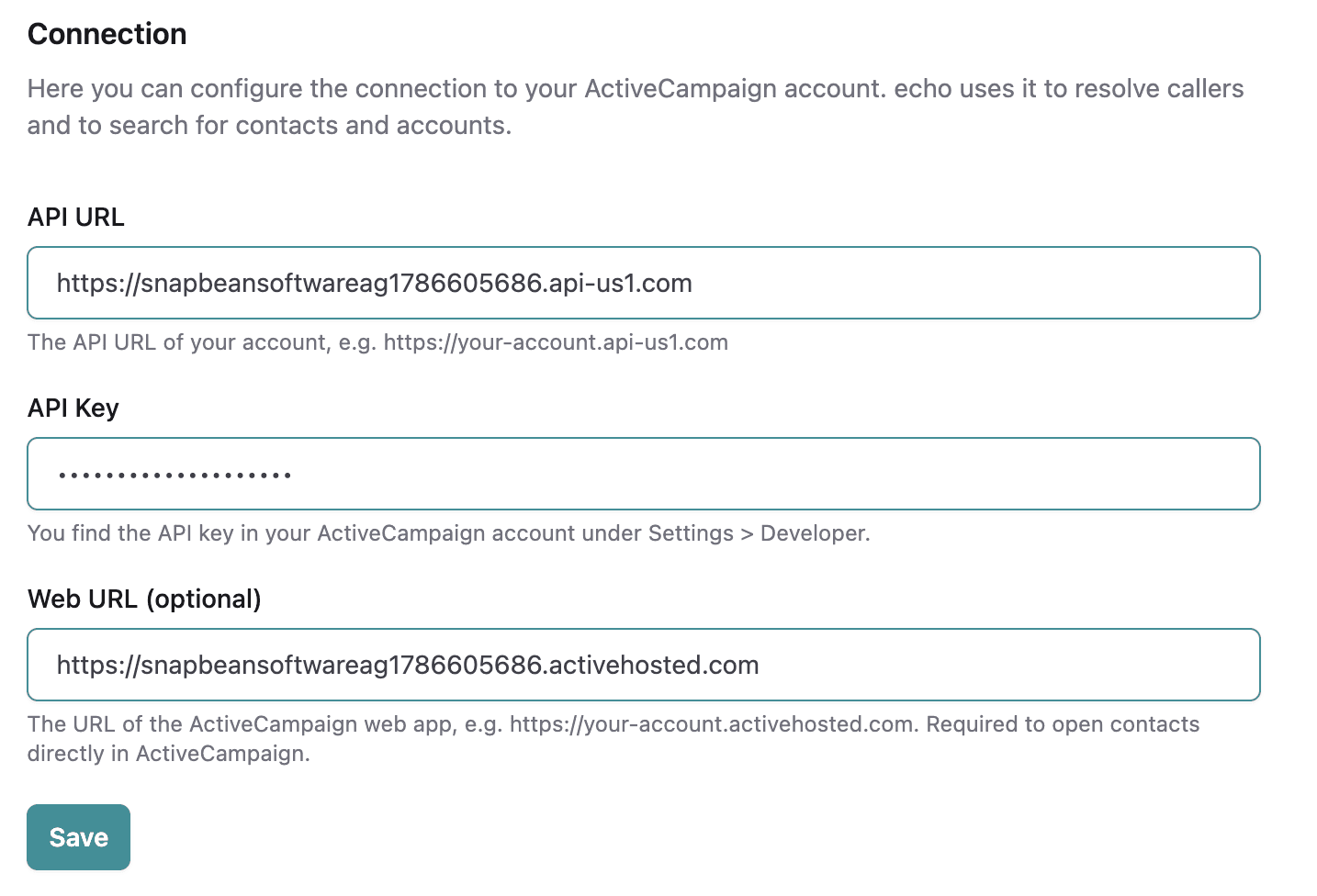
Enter the following values and save them via Save.
- API URL
- API endpoint of your account, e.g.
https://your-account.api-us1.com - API Key
- The API key from Settings → Developer. It is stored encrypted and is never displayed again afterwards.
- Web URL
- Optional. Base URL of the ActiveCampaign web app, e.g.
https://your-account.activehosted.com
Checking the connection
Search for a contact you know exists in ActiveCampaign under Contacts in echo. If the entry appears, the connection is working.
If no results appear, check the following:
- Is ActiveCampaign enabled under Settings → Integrations?
- Is the API URL spelled correctly including the protocol (
https://)? - Is the API key still valid and does the associated user have access to the contacts?
Caller identification
For incoming calls echo searches ActiveCampaign for the caller's phone number. ActiveCampaign compares the number as it is stored on the contact. So that callers are reliably recognized, we recommend storing phone numbers in international format (e.g. +41 44 123 45 67).